Ultracker support
How can we help? Below you’ll find user guides as well as answers to frequently asked questions (FAQ).
Instructions
Logging in to Ultracker
Drum Return Steps

Ownership Takeover (Change of Ownership)
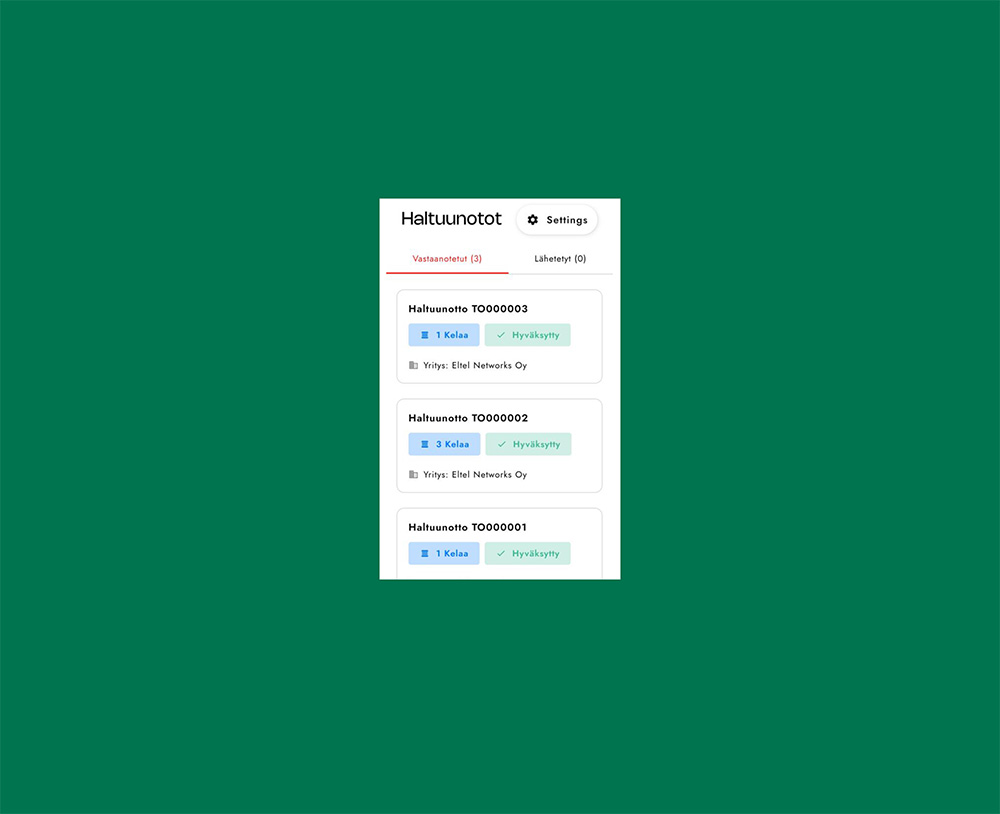
Ultracker includes a takeover feature that allows the user handling or returning a drum to request ownership for themselves.
FAQ: User Accounts & Login
If your company already uses the Ultracker service, you will receive your login credentials from your company’s main administrator.
If your company does not yet have an Ultracker account, please fill in the form on our Register page so we can create an account for your company.
Once your company’s main administrator has created your user account, you will receive an activation link by email. Through this link, you can create your password, after which your credentials become active.
The same login credentials are used for both the mobile and the web application.
If you have main administrator rights, you can create an unlimited number of new user accounts in Ultracker. Log in to the web application, then go to Settings → Users → Add. Finally, click Save, and the new user will receive an activation link by email.
You can request a new password on the login page of the web application by selecting “Forgot your password?” and entering your username.
You will then receive a link and instructions by email.
Only users with main administrator rights can delete user accounts. If you have a standard user account, please ask your company’s main administrator to remove the user who is no longer needed.
It is in everyone’s best interest to keep the user list up to date, ensuring that old or unused accounts (e.g., summer employees) are not kept in the system unnecessarily.
FAQ: General
Every Reka's drum is marked as follows:
Drum type, e.g. K26 spray‑painted on the flange
Drum number, on a metal plate, e.g. 123456
→ The drum number used in orders, delivery notes and in Ultracker is in the format 26K123456.
→ Each drum flange includes a drum label containing the drum number and its corresponding QR code.
Open the scanner and, instead of reading the QR code, select “enter drum number” and type in the drum number exactly as it appears in Ultracker.
For example, for Reka Cable drums: drum type + number = e.g. 26K123456.
The drum card will open, and you can update the drum’s information and location.
Note: Ultracker drum return currently applies only to Reka by Nexans drums.
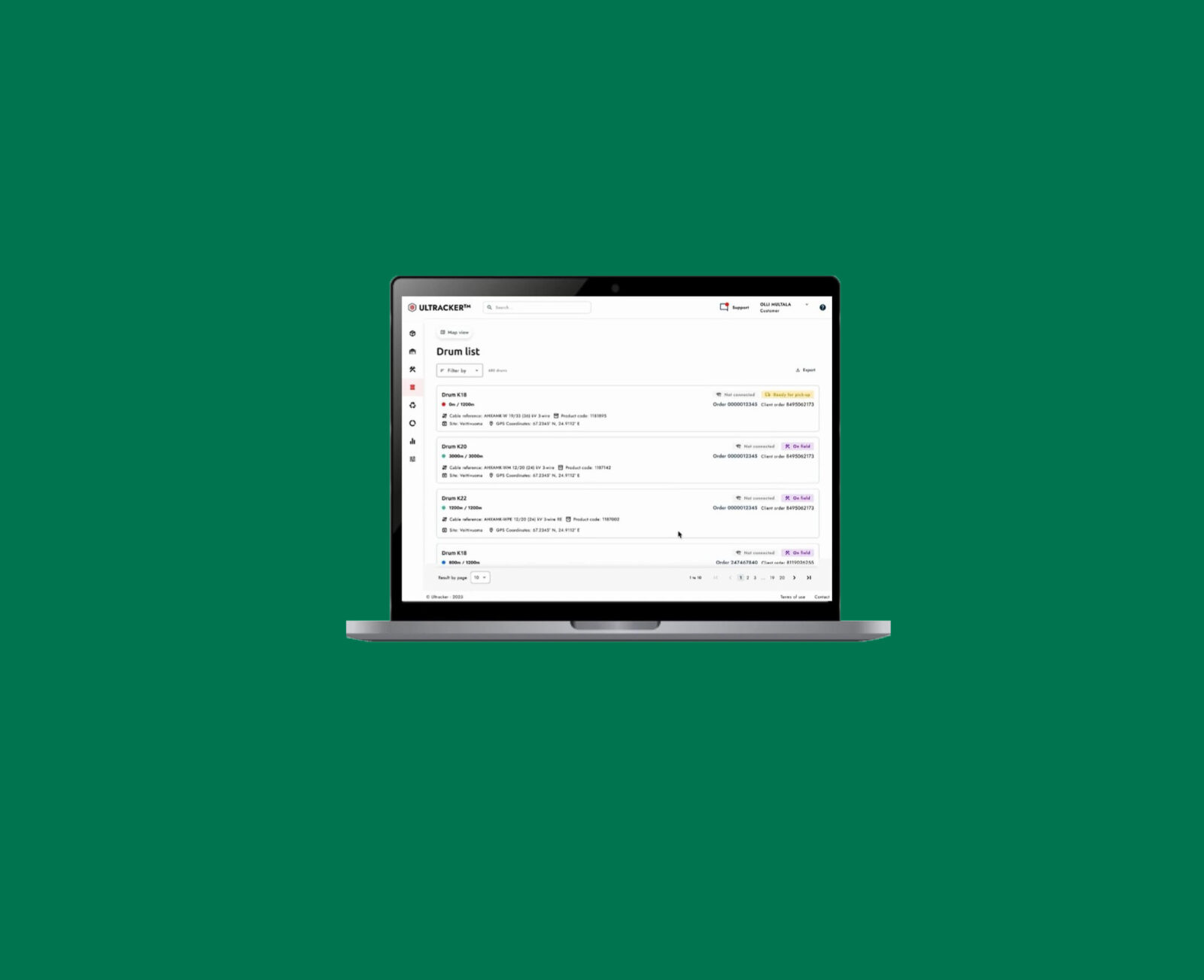
1) Log in to the Ultracker mobile application and select Drum Return from the menu.
2) Start by pressing + New Drum Return.
3) Select the delivery method for the drums and fill in the pickup location details.
4) The reference for the credit invoice is the reference used by your company, e.g. cost center, project number, etc.
5) Add the drums either by scanning the QR code, entering the drum number manually, or selecting the drums from the list.
6) Submit the return notification.
7) The return will receive its own ID number and will be saved under the Drum Returns tab.
8) The return status shows the progress of the return process.
When making your first Ultracker drum return, we recommend contacting Ultracker customer support in advance.
HOW TO USE THE CUSTOMER REFERENCE
- You can add a customer reference based on the person who will review the credit invoice, e.g. Matti Meikäläinen.
- You can add a customer reference based on a project, site or client, e.g. 00350 or Kirjurinluoto2023.
- You can add a customer reference based on the location or waybill, e.g. Ähtäri, 18.1.2023 or Transproduct September.
Before the drum return:
- By updating cable consumption, you know the number and location of empty drums to be returned.
- You can assign the drum return to a specific project or worksite code.
- Drum ownership is verified, and only the owner can submit a return.
During the return:
- Each drum is identified using the Ultracker mobile application at the return point.
- Once the condition assessment is completed in Ultracker, the drum status will change to either “drum OK” or “to be scrapped.”
- If a drum is marked “to be scrapped,” a photo of the drum and the reason for scrapping are stored in Ultracker.
- You can follow the return process almost in real time.
After the return:
- All Ultracker drum returns are stored in the Drum Returns tab, and you can revisit them whenever needed.
- Depending on your user permissions, you can also see the completed credit decisions in euros.